-1.jpg?width=400&height=46&name=GHS_Primary_Logo_Landscape_Full_Colour%20(1)-1.jpg)
This article is split into three different sections:
The Contact Administrator recovery option allows users to request a Two-Factor Authentication (2FA) reset directly from their organization's Enterprise Administrator. This feature is intended for users who have lost access to their authenticator device or application.
User Guide: Contact Administrator Recovery
If you cannot access your 2FA method, follow these steps to initiate a reset request.
Step 1: Initiate Request
- Navigate to the login screen and enter your username and password.
- On the 2FA input screen, click the "Can't Access your Authenticator?" link located below the code field.
- Select the Contact Administrator option.
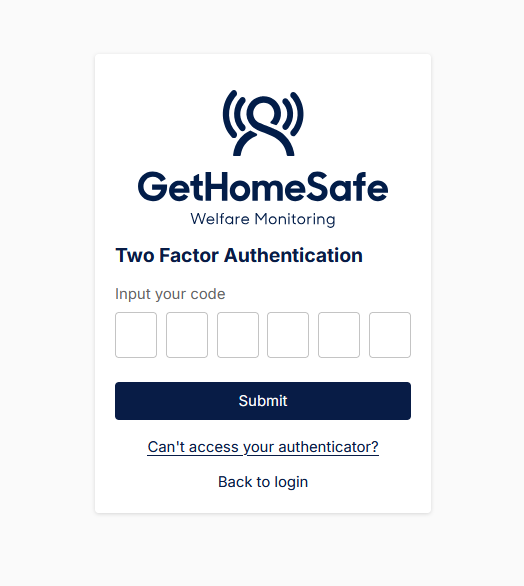
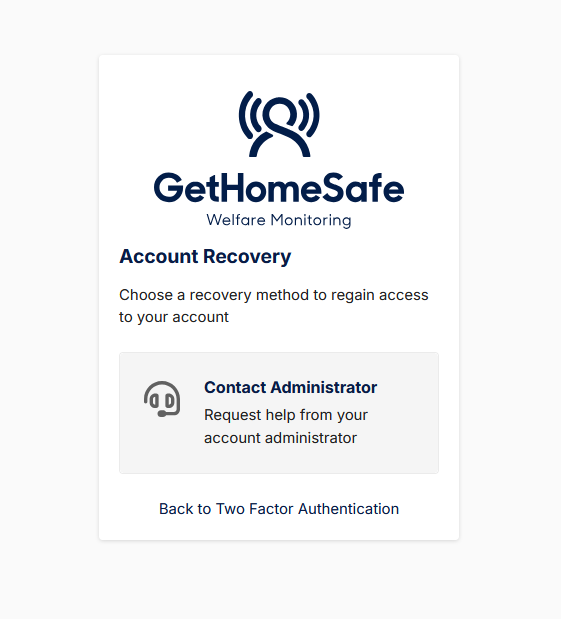
Step 2: Submit Form
Complete the request form displayed on the screen:
- Note (Optional): Enter a brief description of the issue (e.g., "Device lost").
- Click Submit Request.

Step 3: Verification Process
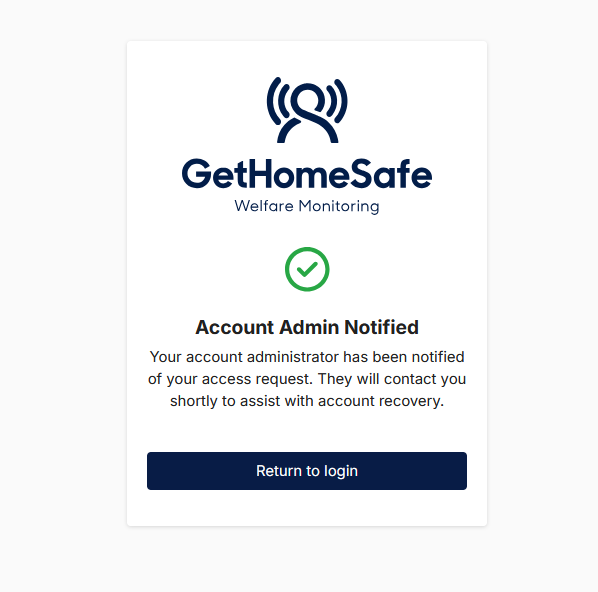
- Notification: Your Enterprise Administrators are immediately notified via email.
- Wait Period: An Admin must review the request. You will be contacted to verify your identity.
Step 4: Code Exchange
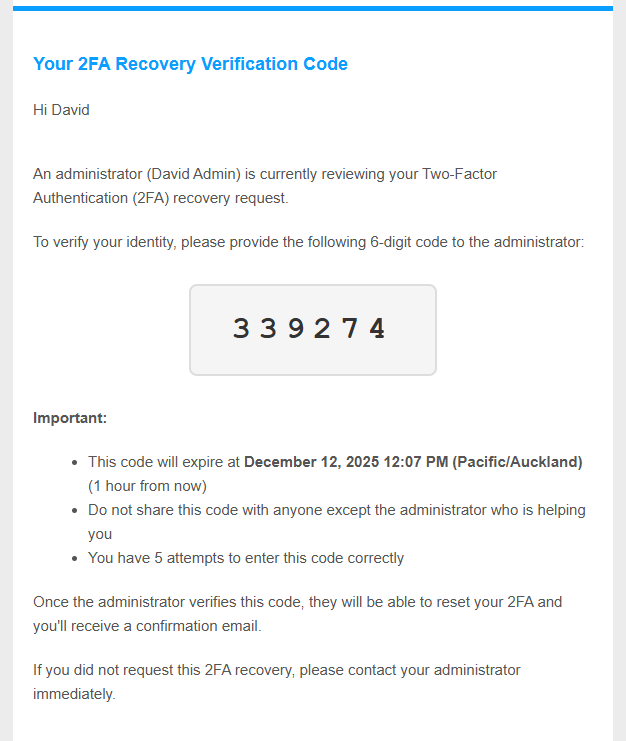
Once an Admin begins reviewing your request, you will receive an email containing a 6-digit verification code.
They will contact you to retrieve this code to reset your authenticator
- Action: Provide this code to your Administrator.
- Important: This code is valid for only 30 minutes.
Post-Recovery: Once the Admin enters the code and approves the request, you will receive an "Approval Confirmation" email containing a login link.
- If 2FA is mandatory: You will be immediately prompted to configure a new 2FA method upon signing in.
Administrator Guide: Processing Requests
Only Enterprise Administrators can view and action recovery requests.
Step 1: Accessing the Request
When a user initiates the ‘Ask an Administrator’ flow an email will be sent out to all existing Account Admins in their Enterprise.
- Via Email: Click the link in the "2FA Recovery Request" email notification.
Step 2: Taking Request Ownership
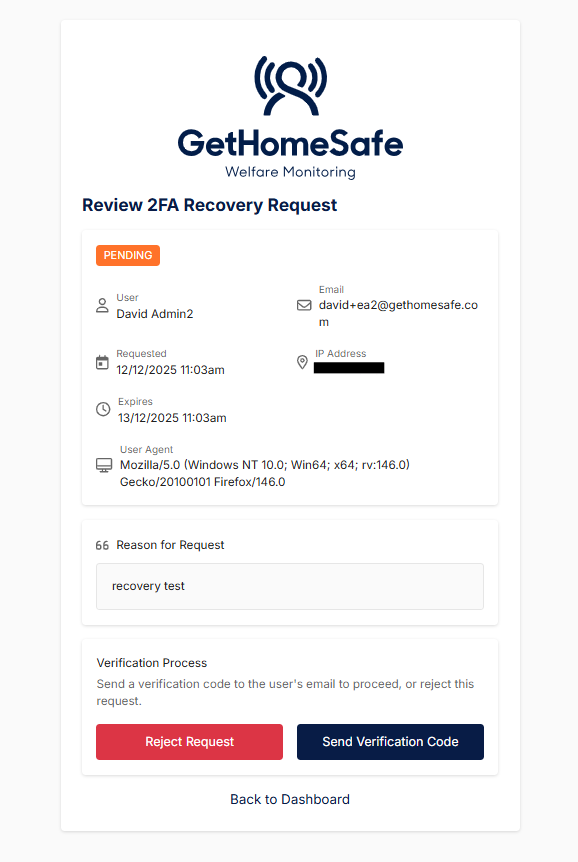
Click Send Verification Code within the request form.
- System Action: A 6-digit code is automatically emailed to the user.
- Request Ownership: The request becomes locked to your admin account. Other admins can no longer view or action this specific request.
- Reject: Click Reject and provide a reason.
- Result: The user receives a rejection email with your provided reason. 2FA remains active.
- Result: The user receives a rejection email with your provided reason. 2FA remains active.
Step 3: Identity Verification
Requirement: You must verify the user's identity outside of the system (e.g., phone call, email or SMS) before proceeding.
- Contact the user via a trusted method.
- Ask the user to read back the 6-digit code sent to their email in Step 2.
Step 4: Resolution
- Approve: Enter the correct code provided by the user and click Approve.
- Result: 2FA is removed from the user's account.

- Result: 2FA is removed from the user's account.
Back Up Codes:
User Guide: Setting up Backup Codes
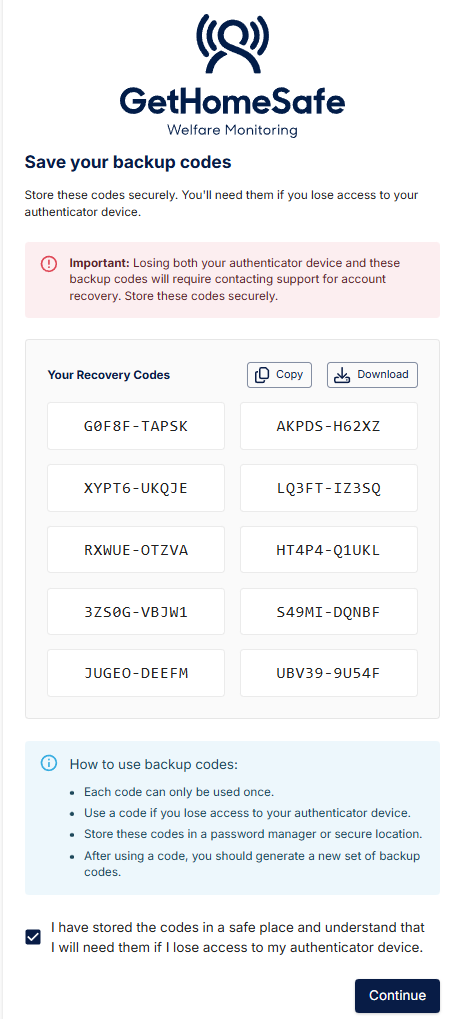
During a user’s initial 2FA setup or reset, the system will generate 10 unique 10-digit, one-time use codes linked to the user's account. These codes must be stored securely and can be used to bypass the standard authenticator requirement. The user is advised to generate a new batch of codes after account recovery to ensure this recovery option remains available.
User Guide: Recovering an Account using Backup Codes
If you cannot access your 2FA method, follow these steps to regain access.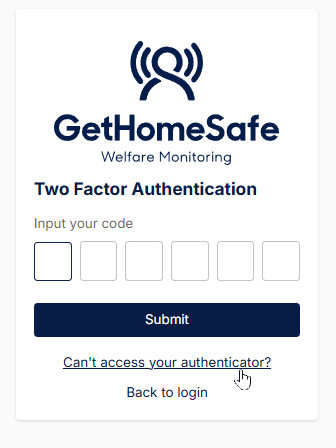
Step 1: Initiate Request
- Navigate to the login screen and enter your username and password.
- On the 2FA input screen, click the "Can't Access your Authenticator?" link located below the code field.
- Select the Recovery Code option.
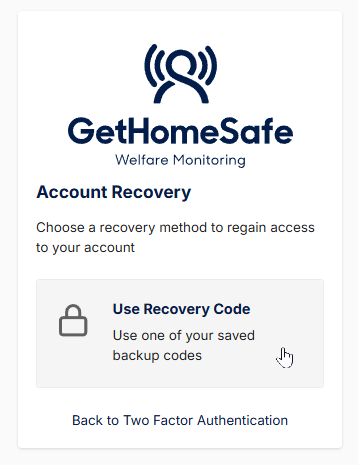
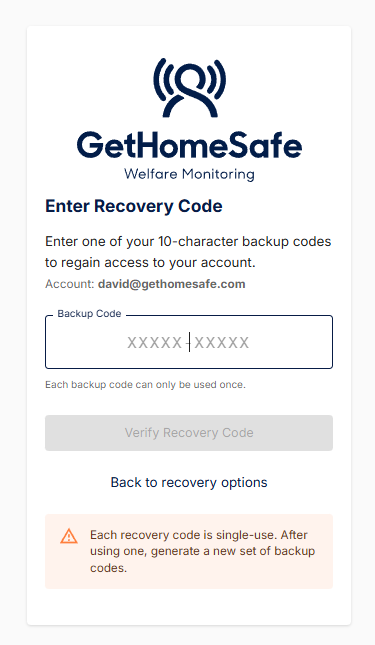
Step 2: Provide Backup Code
If the user has misplaced their backup codes they must resort to an alternative recovery option.
- Enter a valid backup code from the batch initially generated from their 2FA setup.
- Click Submit.
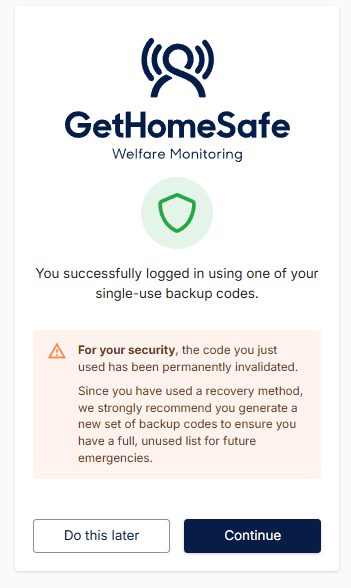
- The used code will expire and not work for future account recovery.
- If the code provided is valid the user will be successfully logged in.