-1.jpg?width=400&height=46&name=GHS_Primary_Logo_Landscape_Full_Colour%20(1)-1.jpg)
Multiple Sites
Having access to both the ‘Fieldworker’ & ‘Journey & Planning’ add-on modules allows your organisations to take advantage of Multiple Site functionality. The Multiple sites feature combines the “Journey” and “Site” fields into one, allowing users to pre-plan multiple site visits before starting an activity.
This allows Fieldworkers to manage activities that span multiple locations without needing to create separate records for each visit.
Between site sign-ins, users will be able to select the next site they intend to travel to, allowing for real-time intention recording.
1. Planning Your Journey
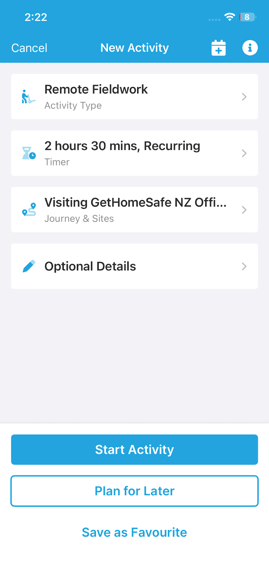
When setting up a new Activity, access the Journey & Sites field.
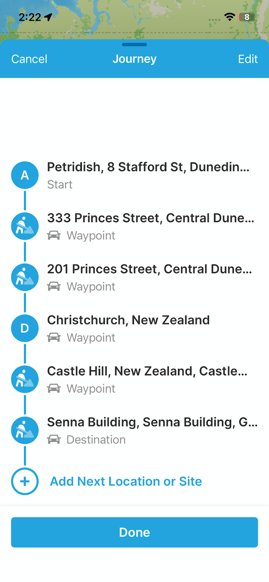
- Add Waypoints: Search for and add the addresses or sites you plan to visit.
- Automatic Attachment: If a waypoint matches a known Site in your organisation, it is automatically attached to your activity list.
- Multiple Sites: You can add as many stops as required for your day.
2. Utilising Sites - Signing in
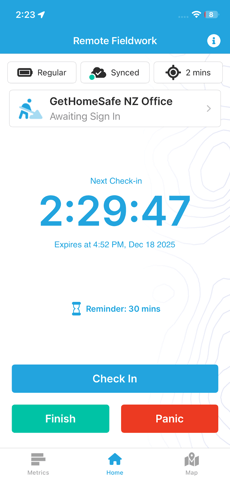
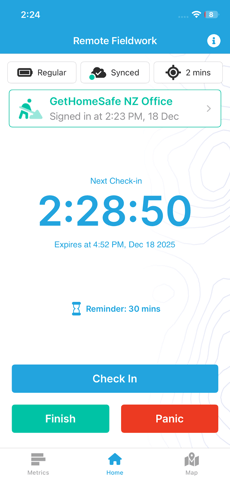
Once you start your activity, your Sites Banner on the home tracking screen becomes your control center for managing sites assigned to your activity.
- Intention: By default, the first site on your list is pre-selected as your "Intention."
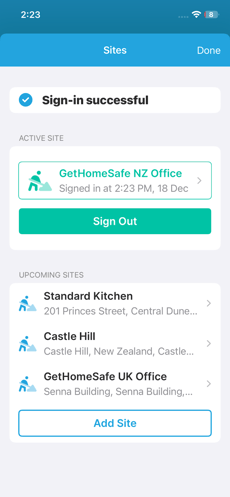
- Arriving: When you physically reach the location, tap the banner and confirm your sign in.
- Status Change: The banner will update to show you are "Signed In".
Safety Note: When you Sign In to a site, the specific Site Contacts for that location become active Alert Receivers. If an emergency alert is triggered while you are signed in, these contacts will be notified along with your regular Team Leaders.
2b. Utilising Sites - Signing Out
When you are ready to leave a site:
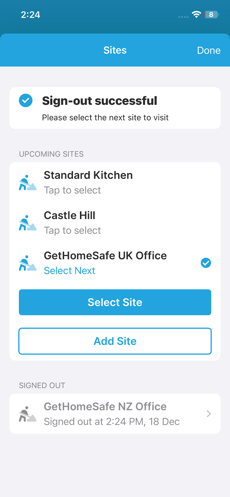
- Access the Sites banner and tap Sign Out.
- Alert Receivers Update: The Site Contacts for that location are immediately detached and will no longer receive alerts.
- Select Next Site: You will be prompted to select your next destination from your list.
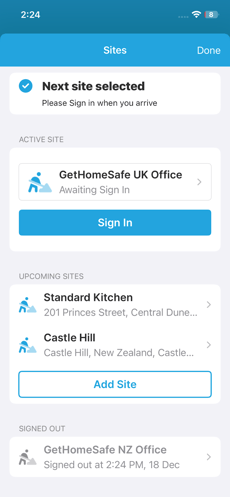
- Note: Selecting a site here records your intention (where you are going). It does not sign you in immediately.
- Once a site is selected, it will remain in the "Awaiting sign-in" state until you reach the next address and manually tap Sign In.
- Selecting a next site intention is optional after successfully signing out of a site.
3. Managing Your Sites List
Understandably plans may change. You can modify your list of sites even while an activity is running. We support the following actions:
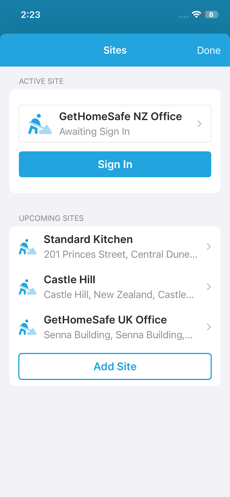
- Add a Site: Open the Sites Menu to add a new location recognised by your organisation.
- Remove a Site: If you are skipping a location, you can remove it from your pending list.
- Select a Site: You may update your journey intention by selecting and nominating a site from your list as the displayed active site.
- Past Sites: Locations you have already completed (signed in and out of) move to the bottom of the menu for your reference.
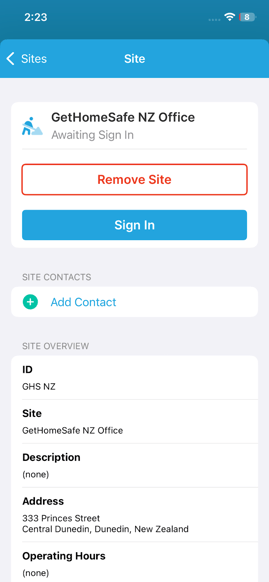
- View Site Profile: You may view a Site's profile by tapping it on the list, this will show a full list of details including its site contacts and a site overview.
- Managing Site Contacts: You have control over who is notified at each specific location.
You may Add or Remove site contacts manually for that specific site.
Note:
This feature is currently in a closed beta state and may have unexpected issues or bugs. If you would like to test this feature prior to it's full release please send an email to support@gethomesafe.com.