-1.jpg?width=400&height=46&name=GHS_Primary_Logo_Landscape_Full_Colour%20(1)-1.jpg)
How to Set Up Webfleet and GetHomeSafe
Part 1: Create a Dedicated Webfleet Integration User
To ensure your connection is secure and uninterrupted, we strongly recommend creating a dedicated Webfleet user account specifically for this integration, rather than using an existing employee's login.
- Log in to your Webfleet Admin portal.
- Create a new user (e.g., named "GHS_Integration").
- You must grant this new user the following permissions to allow GetHomeSafe to read your fleet data:
- INTERFACES: Webfleet.connect (Checking this box is mandatory for API access)
- TRIP DATA ACCESS: Full access
- VEHICLE AND ASSET ACCESS: Full access
For detailed instructions on creating and managing users in Webfleet, please visit the Webfleet Support Hub.
Part 2: Enabling the Integration in GetHomeSafe
Once your dedicated Webfleet user is created and the correct permissions are assigned, you can connect the two platforms.
- Access your Enterprise as an Account Administrator.
- Navigate to your Enterprise’s Integration setup page.
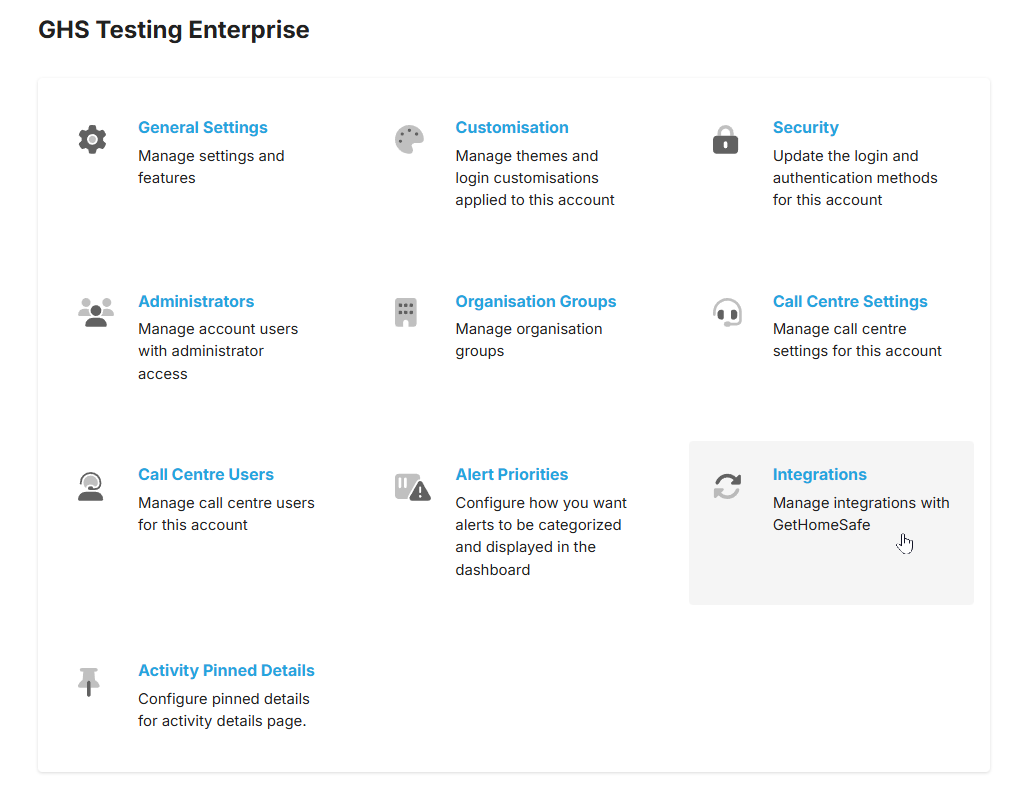
- Add Webfleet as an integration.
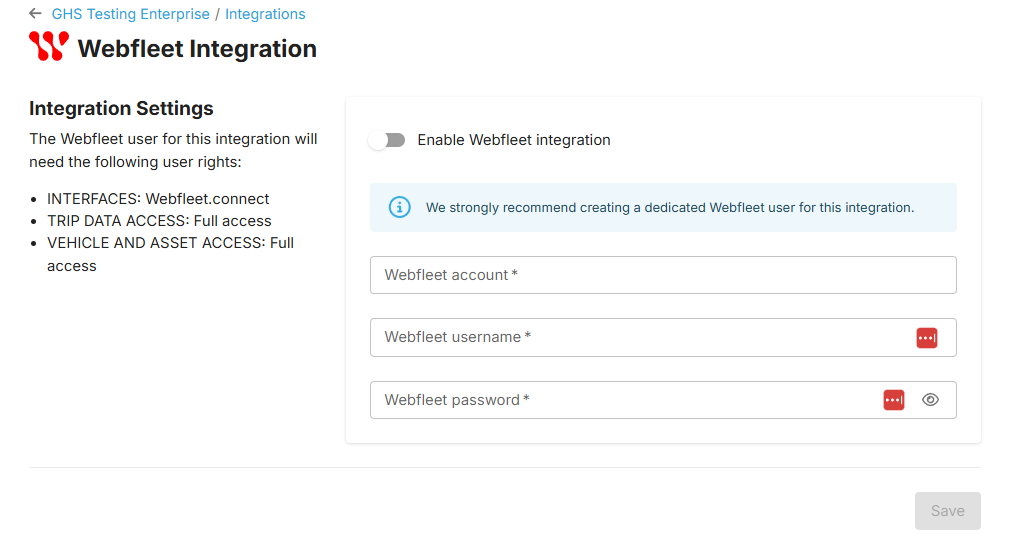
- To enable the integration you will need to provide the details of a Webfleet user with the qualifying user permissions.
- Webfleet Account
- Webfleet Username
- Webfleet Password
- Click Save to finalise the integration and begin syncing your vehicles.