-1.jpg?width=400&height=46&name=GHS_Primary_Logo_Landscape_Full_Colour%20(1)-1.jpg)
GetHomeSafe now has a dedicated, simplified screen for Apple CarPlay and Android Auto. While driving, you can check in, finish your activity or raise a Panic from your car’s display, without picking up your phone.
Every action asks you to confirm before it’s sent, so a stray tap won’t check you in, finish your activity or raise a Panic by accident.
Please drive safely. Only use your car’s display when it’s safe and legal to do so, and follow your local road rules.
What you need
- App version: GetHomeSafe 4.37.0 or later on your phone.
- Phone: an iPhone with Apple CarPlay, or an Android phone with Android Auto.
- Car: a car or head unit that supports Apple CarPlay or Android Auto.
- Login: you must be logged in to GetHomeSafe on your phone.
Your activity is still tracked by your phone as normal. CarPlay and Android Auto simply give you an easier way to use the key actions while driving.
Getting started
- Update GetHomeSafe to version 4.37.0 or later.
- Connect your phone to your car, by cable or wirelessly, the way you normally use CarPlay or Android Auto.
- On your car’s display, select the GetHomeSafe icon.
If you can’t see the icon, see Troubleshooting below.
When you don’t have an activity running
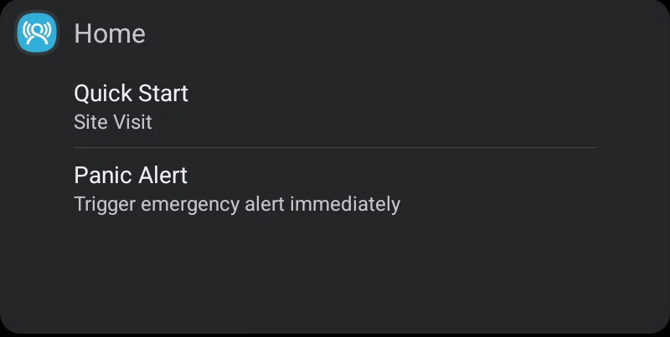
The Home screen shows two options:
- Quick Start: starts your organisations’s Quick Start activity. The activity type is shown underneath, for example Site Visit.
- Panic Alert: raises a Panic straight away.
Panic Alert only appears on the Home screen if your organisation has turned on Quick Panic. Once an activity is running, Panic is always available.
During an activity
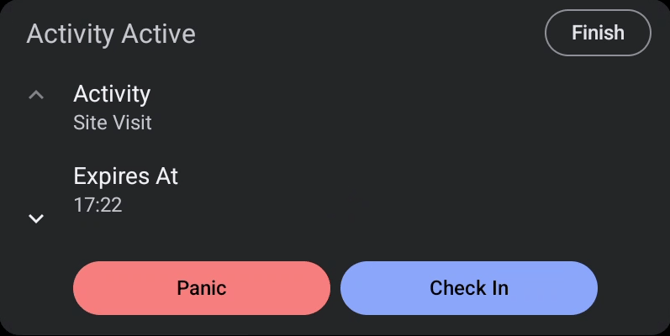
When an activity is running, the Activity Active screen shows:
- Activity: the activity type, for example Site Visit.
- Expires At: the time your activity timer runs out.
- Check In/Extend: lets your supervisors know you’re OK and extends your activity timer.
- Finish: ends your activity.
- Panic: raises a Panic alert.
Confirming an action
Each action asks you to confirm before anything is sent. For example, when you tap Check In, a Check In? message appears with two buttons:
- I am OK: sends your check-in.
- Cancel: goes back without checking in.
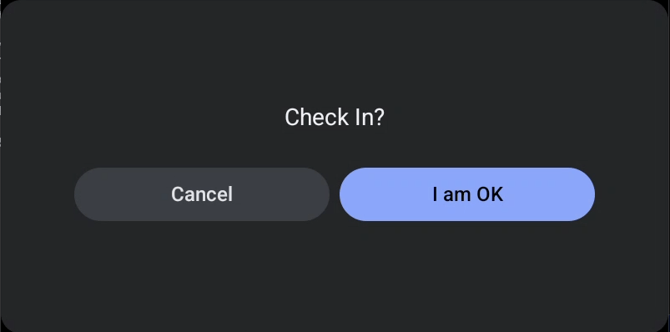
Finish and Panic work the same way.
Troubleshooting
I can’t see GetHomeSafe on my car’s display
- Check you have GetHomeSafe 4.37.0 or later.
- iPhone: go to Settings > General > CarPlay, select your car, then Customise, and make sure GetHomeSafe is included.
- Android: open your Android Auto settings and check GetHomeSafe is allowed to show in Android Auto.
- Disconnect and reconnect your phone.