-1.jpg?width=400&height=46&name=GHS_Primary_Logo_Landscape_Full_Colour%20(1)-1.jpg)
The view selector button, located in the top-left corner of the web portal, lets you switch between your overall account view and an individual organisation view. The button always displays the name of your currently active view, so you know which level you are working in at a glance. Use it to choose whether you are working across the entire account (all organisations together) or within a specific organisation.
The button looks like this:
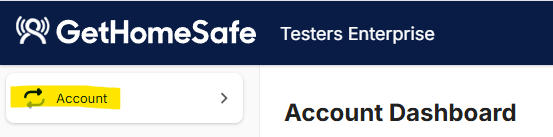
When you click this button, a dropdown list of all organisations linked to your account will appear. From here, you can quickly see which organisations you have access to and select the one you want to work in.
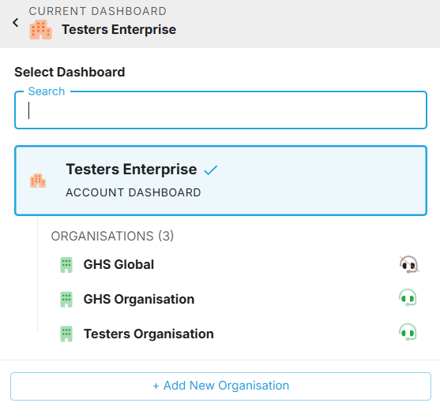
Selecting an organisation will switch your view to that organisational level. In this view, any changes you make will apply only to that organisation. This is where you can review and adjust settings such as:
-
Organisation-specific configuration and preferences
-
User access and roles within that organisation
-
Alerts, escalation rules and monitoring settings for that organisation’s workers
Note: You must have the appropriate permissions for an organisation to view or change its settings. Contact your account administrator if you need access.
This separation keeps account-wide and organisation-level settings clearly distinct, so you can safely tailor the platform for different teams, sites, or business units without affecting the rest of your account.
To return to your overall account view, click the same button again and select Account instead of an individual organisation. This will take you back to the top-level account view, where you can see and manage settings that apply across all organisations.