-1.jpg?width=400&height=46&name=GHS_Primary_Logo_Landscape_Full_Colour%20(1)-1.jpg)
On iOS, GetHomeSafe integrates directly with the native Apple Shortcuts app. The app will launch an activity and trigger a panic as long as the phone's screen is awake.
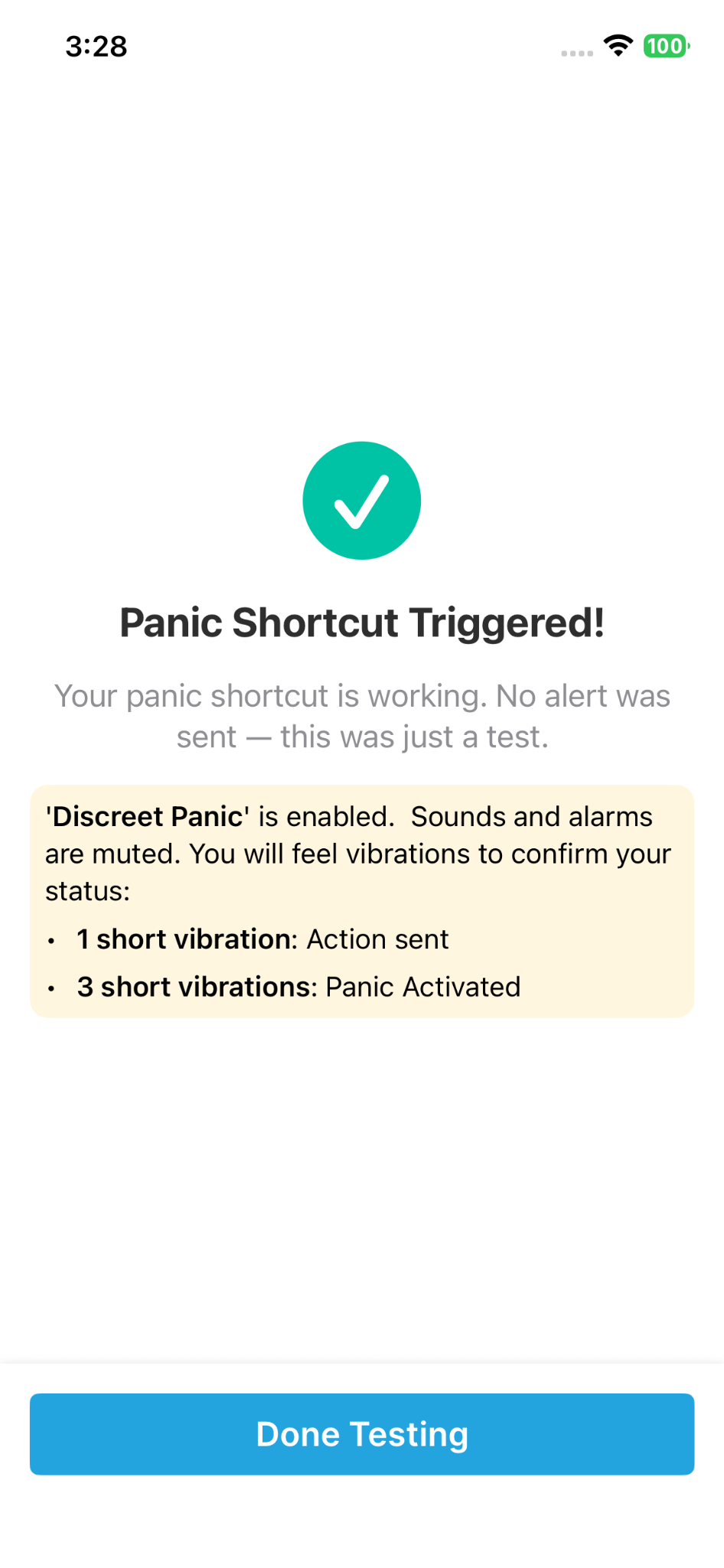
Note on Discreet Panic: If your organisation has 'Discreet Panic' enabled, these shortcuts will be completely silent. You will instead feel vibrations to confirm your status:
- 1 short vibration: Action sent
- 3 short vibrations: Panic successfully activated
Note - If your organisation has Discreet Panic enabled, these shortcuts will be completely silent. You will instead feel vibrations to confirm your status:
- 1 short vibration: Action sent
- 3 short vibrations: Panic successfully activated
Step 1: Add GetHomeSafe to your Shortcuts Library
Before assigning a physical button, you must first add the GetHomeSafe action to your iPhone's shortcut library.
- Open your iPhone's native Shortcuts app and tap the + icon in the top corner.
- Tap Add Action, search for 'GetHomeSafe', and select Panic.
- Tap Done to save the shortcut.
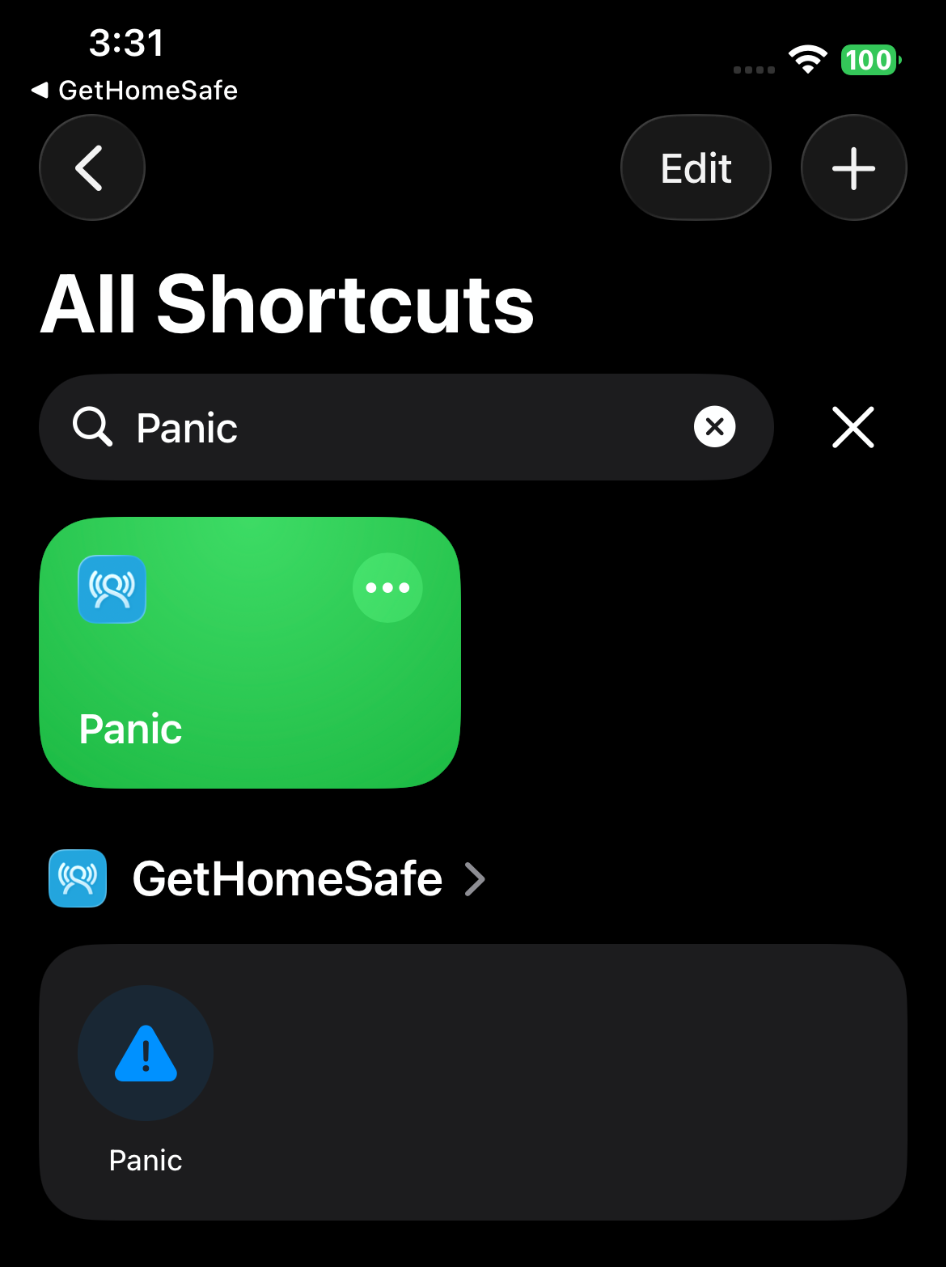
Step 2: Set Up your Trigger Mechanism
Once the shortcut is saved, you can map to a trigger mechanism on your phone.
We recommend the Action Button if your device supports it, or Back Tap for older models.
Option A: The Dedicated Action Button (iPhone 15 or newer)
- Go to your iPhone Settings -> Action Button.
- Swipe through the options until you reach Shortcut.
- Choose the Panic shortcut you just created.
- To trigger: Simply press and hold the physical Action Button on the side of your phone.
Option B: Back Tap (iPhone 8 or newer)
- Go to your iPhone Settings -> Accessibility -> Touch -> Back Tap.
- Choose Triple Tap (this prevents accidental triggers better than Double Tap).
- Scroll down to the Shortcuts section and select Panic.
- To trigger: Press the power button once to wake the screen, then firmly tap the back of your phone three times.
Step 3: Shortcut Trigger Testing
We highly recommend practicing your chosen trigger to ensure it has been configured correctly.
- Open the GetHomeSafe App and navigate to Settings -> Panic Shortcut Setup.
- Tap the “Test Panic Shortcut” button at the bottom of the screen.
- While on this screen, activate your physical shortcut (hold the Action Button or Triple Tap the back of your phone).
- You will see a "Panic Shortcut Triggered!" confirmation screen indicating that your shortcut is working perfectly.
Shortcuts performed whilst on this specific screen ensures no actual alert is sent to your supervisors.