-1.jpg?width=400&height=46&name=GHS_Primary_Logo_Landscape_Full_Colour%20(1)-1.jpg)
Tip - To use SMS capabilities, ensure your mobile number is associated with your GetHomeSafe profile. You can verify this in the GetHomeSafe app by going to Settings > Account Details.
When you have no internet connection, the GetHomeSafe app will automatically offer SMS as an alternative way to perform an action.
Note - the supported actions are:
- Check-In
- Finish
- Panic
- Time Check
- Extend Timer
- Quick-Start
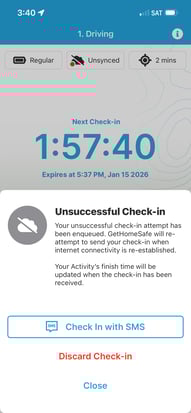
Here is an example of what a check-in looks like via SMS.
If you have no internet connection and attempt to perform an action, the GetHomeSafe app will detect this and present you with an SMS option. Select Check-in via SMS.
Once selected, your messaging app will open with a pre-populated message. This message contains all the information needed to update your action. All you need to do is press send: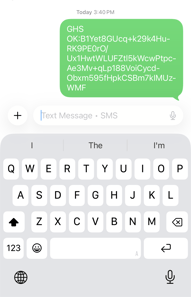
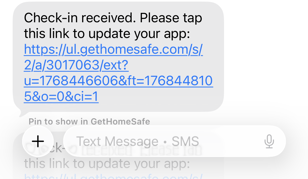
You will receive a confirmation message once your action has been received. The message includes a link — tap it to return to GetHomeSafe and update your timer.
I received a "We could not find a user associated with this device, please contact GHS support" message, what does this mean?
If you receive this message, it likely means that the phone number associated with your GetHomeSafe account is different to the number that the text is being sent through. To check the phone number associated with your GetHomeSafe account:
- Open the GetHomeSafe app
- Click on Settings in the bottom right of the screen
- Click on Account Details
- From here, you will be able to see the phone number associated with the account, double check that it is the same as the number you are sending SMS messages from.
If the numbers look the same, take screenshots of both and email them to support@gethomesafe.com with a description of your issue. A member of our support team will be in touch.