-1.jpg?width=400&height=46&name=GHS_Primary_Logo_Landscape_Full_Colour%20(1)-1.jpg)
Important Notes
- Transmission Times: Sending messages via satellite transmission can take several minutes.
- Best Practice: For the best experience, we highly recommend you start your activity while within cellular coverage before heading out.
- Beta Feature: This functionality is currently in Beta. Please send any feedback or bug reports to product@gethomesafe.com.
Before You Begin: Clear Existing Connections
To prevent known pairing issues and ensure a seamless connection, we highly recommend starting with a clean slate. If your inReach has been previously paired to your phone or another device, please clear those connections and restart your hardware before proceeding:
- Open your inReach device's Bluetooth settings and forget/unpair all existing connections.
- Open your phone's system Bluetooth settings and forget/unpair the inReach device.
- Restart your inReach device (Optional).
Accessing the Pairing Menu
To connect your inReach device with the GHS app, you first need to navigate to the main device pairing and selection page:
- Open the GHS app and navigate to the Settings tab.
- Scroll down and tap on the inReach setting.
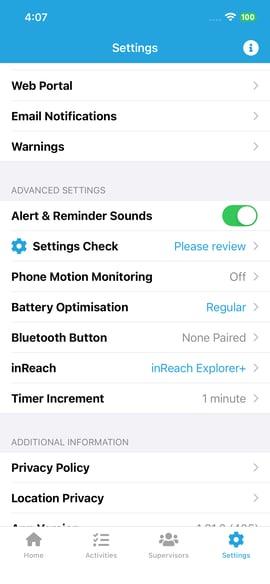
The pairing process differs slightly depending on your mobile operating system. Please follow the instructions below for either iOS or Android.
iOS Pairing Instructions
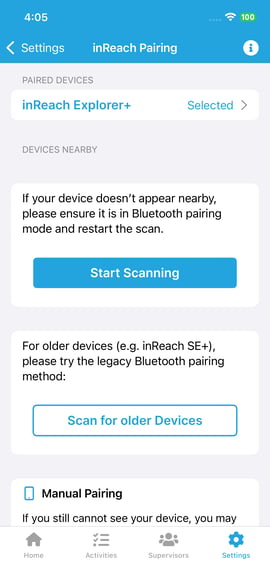
- Tap Scan for Devices to begin searching for nearby devices in pairing mode. Note: Newer inReach devices may automatically appear as nearby devices.
- For older devices (e.g., inReach SE+), tap the Scan for older devices button while the device is in pairing mode. It will then appear for selection in the accessory modal.
- After a successful pairing, you must associate the device with your direct inReach connection. Tap the device in the Paired Devices list to access its device profile.
- Tap Select Device.
Android Pairing Instructions
- Tap Pair within the inReach settings menu to open your Android system’s Bluetooth pairing menu.
- Ensure your Garmin inReach device is placed into pairing mode.
- Scan for nearby devices in your system menu, select your inReach device, and complete the pairing.
- Navigate back to the GHS app. The newly paired device will now appear as a selectable candidate device.
- Tap the device name to open its profile.
- Manually select your device to associate it with your direct inReach connection.
Out-of-Coverage Activity Management
Once your inReach device is successfully paired and selected, you can use it as a reliable fallback when you lose cellular coverage. You will need to ensure your Paired & Selected inReach device is assigned to your activity during pre-start (this should be automatic).
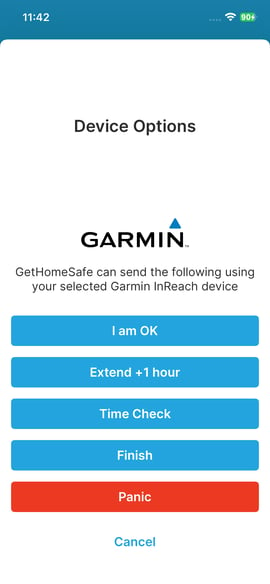
During tracking, if an attempted standard activity action fails due to a poor connection, the GetHomeSafe app will prompt you to reattempt it via Garmin inReach.
The following actions are supported via inReach:
- Quick-start: Begin a new activity session.
- Check-in: Send an ‘OK’ check-in.
- Finish: End your activity session.
- Extend timer: Extend your activity’s remaining time (Available for Countdown activities).
- Time check: Verify your activity’s remaining time.
- Panic: Trigger an emergency alert.
How the Process Works:
- Perform via inReach Prompt: If an action fails due to poor or no cellular coverage, a prompt will appear asking if you want to reattempt the action via your connected Garmin inReach.
- Message Transfer: Upon confirming, the GHS app generates a recognised #command message and transfers it locally (via Bluetooth) to your nearby inReach device.
- Satellite Transmission: Your inReach device will then transmit this #command message to the GetHomeSafe servers via the satellite network.
- Backend Update: Once the GetHomeSafe servers receive the message, your activity status is immediately updated on the backend.
- Delayed App Sync: Your GHS app will automatically refresh and display the updated status after a brief period of time.
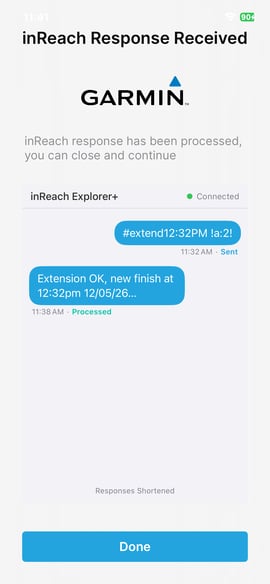
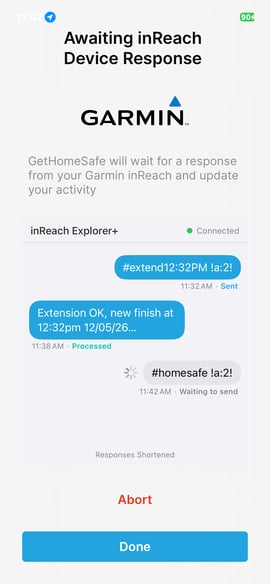
Reminder - Because this process relies on satellite transmission rather than a cellular network, it can take several minutes for the message to send, be received by the servers, and reflect back on your GHS app. As the user you do not need to wait around for your message to be received.