-1.jpg?width=400&height=46&name=GHS_Primary_Logo_Landscape_Full_Colour%20(1)-1.jpg)
Tip - If you need to pair your B10 button, please see this knowledge base article: Pairing a B10 Button
-
Once the B10 is successfully paired in the App Settings, it will be available for enablement for all of your activities.
-
On the Pre-Start screen, toggle the Connect Minew switch to the Active.
- (Optional) Tap Test Minew on this screen to verify functionality.
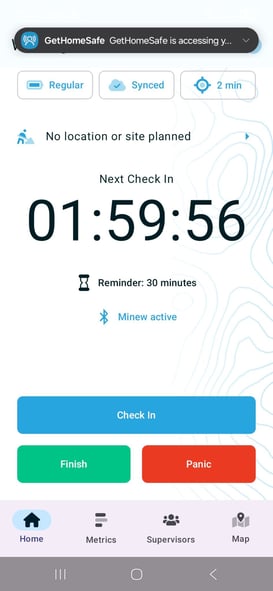
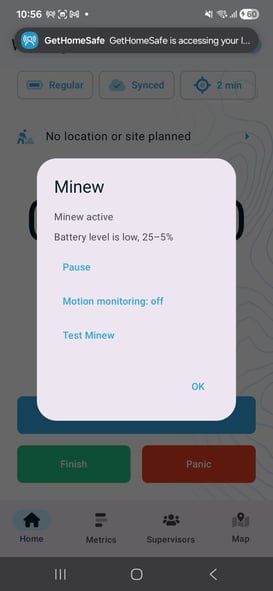
- Tap Start Activity. Once the activity is underway, a blue Minew ‘Active’ status indicator will display in the middle of the tracking screen. You may tap this to manage your B10 device.
The GetHomeSafe app will function as normal while the button is active. If you lose connection the button will automatically attempt to resume its connection with the app once back in range.
Checking In
- Action: Single tap the B10 button once.
- Result: This will instantly submit a check-in and reset your recurring activity safety timers. Check-ins are successfully recorded even when your mobile device is locked.
Triggering a Panic Alert
- Action: Double tap the B10 button.
- Result: This will immediately trigger a Panic Alert within the GetHomeSafe system and instantly notify your supervisors.
Motion Monitoring
- The B10 features built-in motion tracking. This must be toggled on inside the device's Details & Settings menu to enable it to appear during active tracking.
Accessories & Charging
- Wearables: Every B10 button comes with both watch-style and pendant-style wearable accessories, allowing you to wear it on your wrist or around your neck depending on your job requirements.
- Battery Life: The device includes a dedicated charging cable. A full charge provides up to 30-60 days of battery life, depending on how frequently the button is used.