-1.jpg?width=400&height=46&name=GHS_Primary_Logo_Landscape_Full_Colour%20(1)-1.jpg)
Map Overlays let you stack multiple data layers on top of your standard map view. Search for available overlays and apply them simultaneously to build a complete, detailed picture of any location.
This guide explains how to find, add, and configure the visibility of Map Overlays.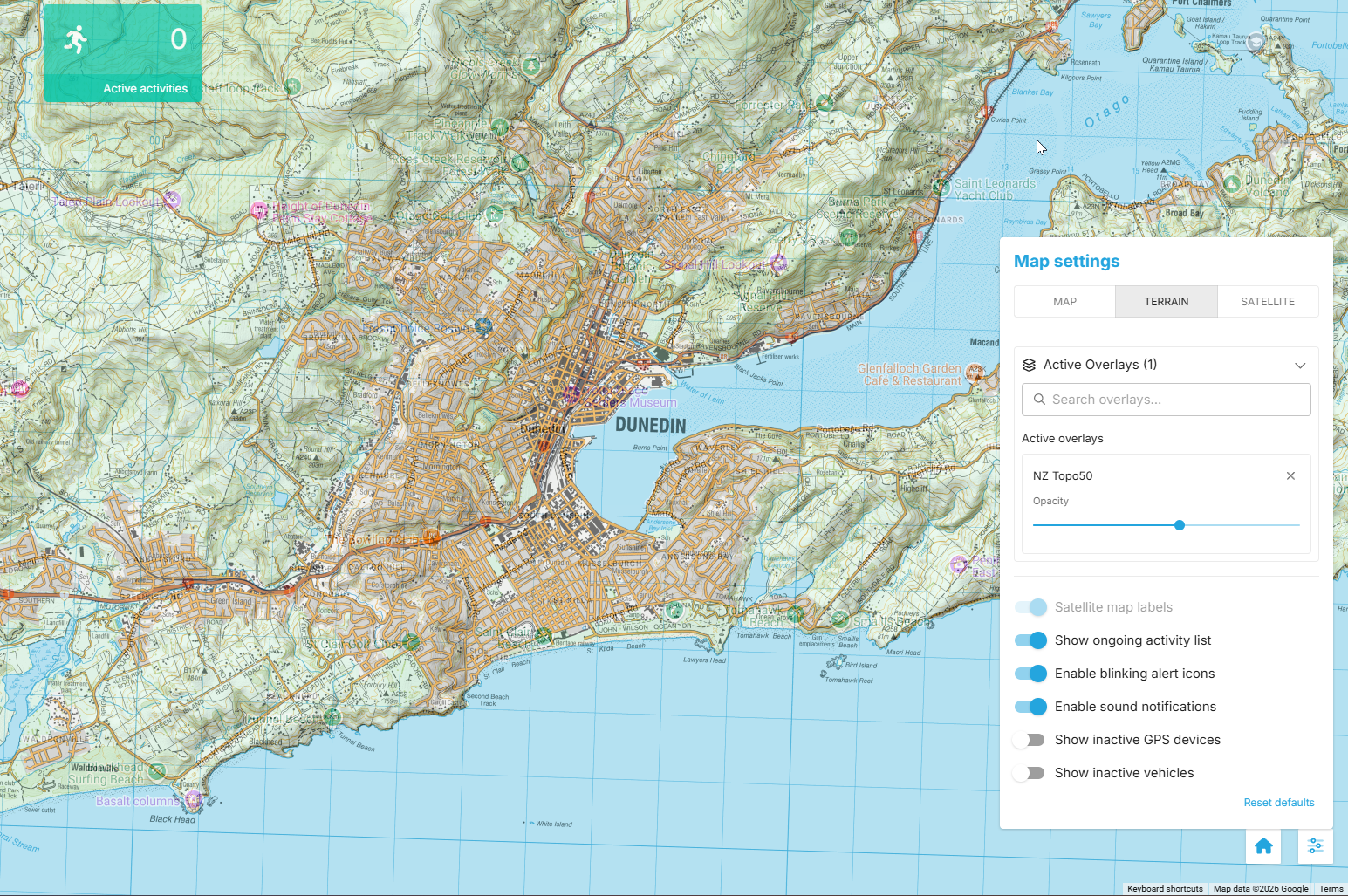
What are Map Overlays?
Map Overlays are additional data layers — such as Topology, Traffic, or Weather Patterns — that you can stack on top of your standard map view. Use them to enrich your location data and compare multiple datasets at a glance.
- Navigate to any Map view on the web portal — such as the Dashboard, Map-only, or Activity page.
- Click on the Map Settings button.
- Locate the Active Overlays section within the settings menu.
Adding an Overlay:
You can add as many overlays as needed — there is no limit to the number of layers you can apply at once.
- Use the search bar within the Overlays section to find specific data layers (e.g., "Topology," "Traffic," "Weather Patterns").
- Click the "Add" button next to the overlay name to apply it to your map immediately.
Adjusting Visibility (Layer Opacity):
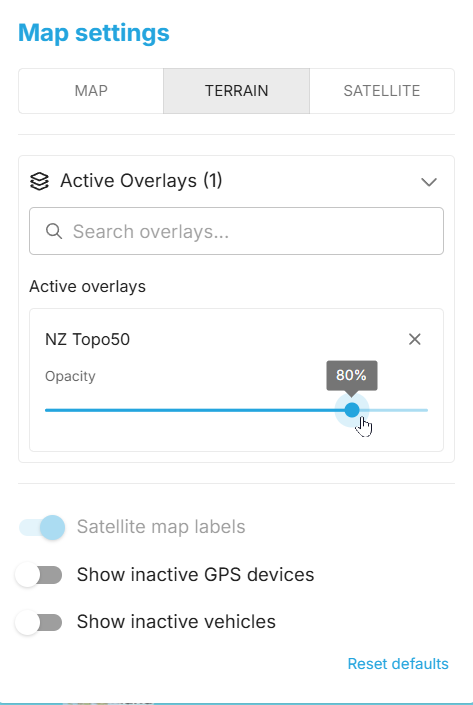
When multiple overlays are active, some layers may obscure others. Each applied overlay includes a configurable opacity slider so you have full control over transparency and layer visibility.
- Locate the Active Layer: Once an overlay is added, it will appear in your "Active Overlays" list in the settings panel.
- Use the Slider: Drag the slider next to the overlay name:
- Slide Left (0%): Makes the overlay fully transparent (invisible).
- Slide Right (100%): Makes the overlay fully opaque (solid).
- Cross-referencing Layers: Adjusting opacity lets you see the base map or other data layers beneath the top overlay, making it easier to compare and cross-reference data.
Removing an Overlay:
To remove an active overlay:
- Return to the Map Settings > Overlays section.
Note: Removing an overlay only affects your current session view. Your saved map configurations may retain previously added overlays until manually cleared.
- Click the "X" icon next to the active layer to remove it.