-1.jpg?width=400&height=46&name=GHS_Primary_Logo_Landscape_Full_Colour%20(1)-1.jpg)
Part 1: Teletrac Setup
To link the Teletrac Navman Integration with GetHomeSafe you will need to acquire an Integration API key. To ensure secure and tailored data access, Teletrac Navman requires you to request a dedicated API key directly from their integrations team.
Before requesting your key, you will need to confirm which Teletrac Navman platform your fleet currently uses, as they have two completely separate APIs:
- TN360: Teletrac Navman’s modern, cloud-based platform.
- DIRECTOR: Teletrac Navman’s legacy software platform.
Note: Your GetHomeSafe integration will work with either platform, but you must request the specific key that matches your account.
You can request your API key by filling out the API Request Form in the Teletrac Navman Customer Resource Center.
Part 2: GetHomeSafe Integration Setup
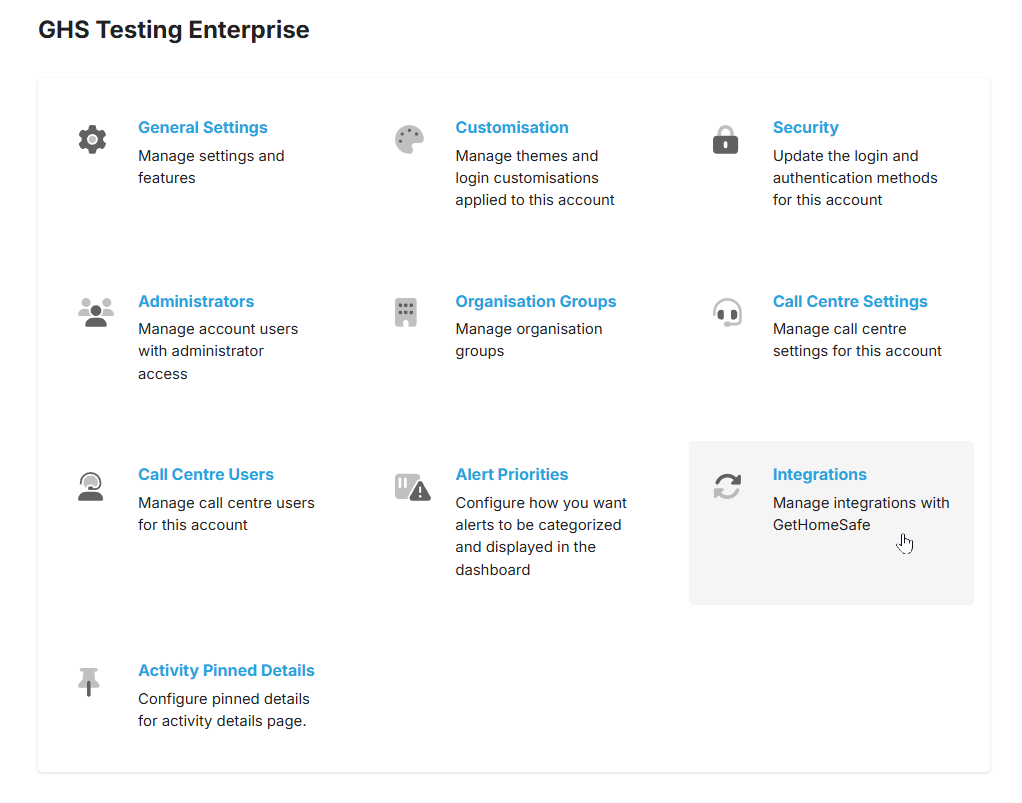
After obtaining an Integration API key you will need to navigate to Enterprise Integration settings to
- Access your Enterprise as an Account Administrator.
- Copy your generated API Partner Gateway Key and access your Enterprise’s Integration setup page.
- Add Teletrac Navman as an integration.
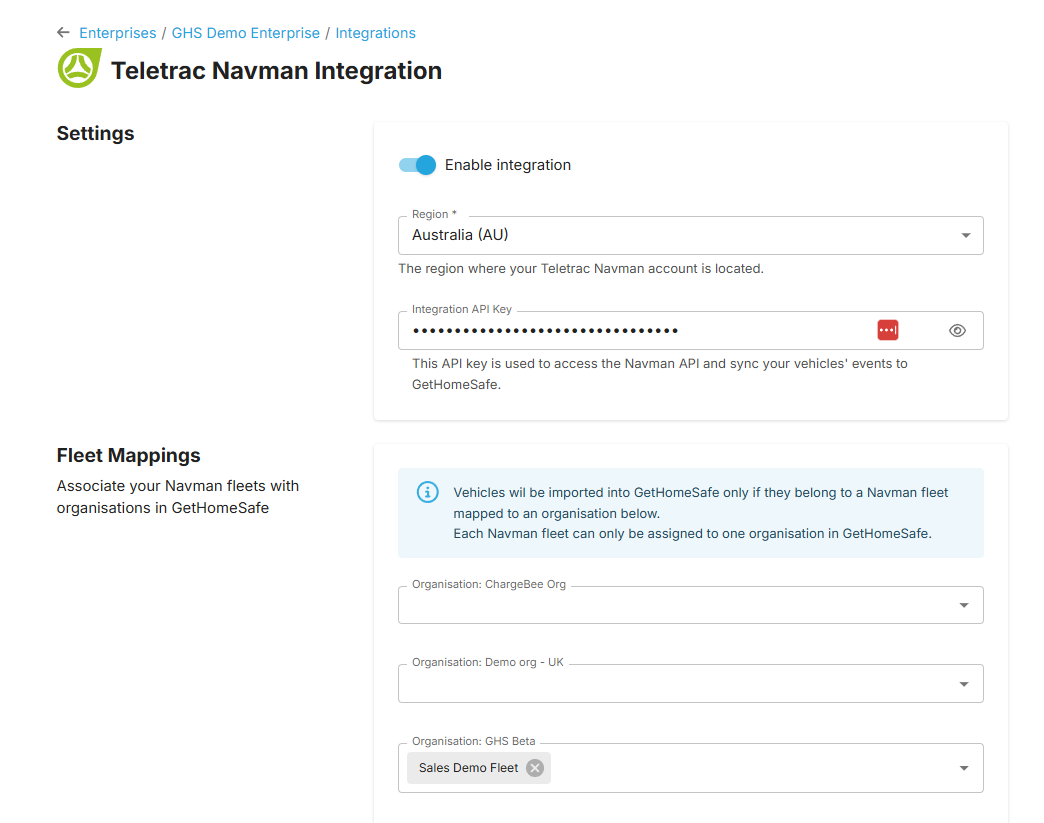
- To Enable the Teletrac Navman integration:
- Select the region where your Teletrac Navman account is located.
- You will need to paste your generated Partner Gateway API key into the API key field. This will enable the importing of vehicles and locations.
Part 3: Configuring your Teletrac Navman Integration
On the Teletrac Navman integration setup page you may also configure your integration settings.
Fleet Mappings
The Fleet Mappings configuration allows you to associate your Teletrac Navman fleets with particular Organisations in your Enterprise.