-1.jpg?width=400&height=46&name=GHS_Primary_Logo_Landscape_Full_Colour%20(1)-1.jpg)
Note: Twig device integration is supported for customers in Australia and New Zealand. Contact your GetHomeSafe account manager to confirm availability in your region.
Part 1: Prepare the device
Before configuring the software, ensure your Twig device hardware is ready to connect to the network:
- Disable the SIM PIN (Crucial First Step): Before the SIM card goes inside your Twig device, you must disable its PIN lock. Insert the SIM into a standard mobile phone, navigate to the phone's security settings, and turn off the SIM PIN. (If the PIN is left on, the Twig device will be permanently locked out of the network).
- Verify an Active Plan: Ensure this SIM card has an active data and SMS plan.
- Insert the SIM into the Twig: Now that the PIN is disabled and the plan is active, remove the SIM from the mobile phone and insert it into your Twig device. Power the device on to connect it to the cellular network.
Part 2: Add the device in GetHomeSafe
Once the device is powered on and connected to the cellular network, you can add it to your platform.
- Navigate to Configure > GPS Devices on your Account Dashboard and click ‘New Device’.
- Select Provider: Choose Twig from the provider drop-down list and select your specific hardware model (e.g., Twig One, Twig Neo).
- Enter Device Details:
- Name: Give the device a name (e.g., "Field Team A - Twig").
- Unique Identifier: Enter the device's IMEI number. You can usually find this printed on a sticker underneath the battery or on the original device packaging.
- Phone Number: Input the phone number associated with the SIM card inside the device.
- Assign the Device:
- Organisation: Assign the device to the correct Enterprise Organisation.
- User (Optional): If this is a personally issued device, you can link it directly to a specific user's profile.
Part 3: Recommended Configuration
To ensure alerts are received and processed correctly, we highly recommend enabling the following automation settings immediately after connection.
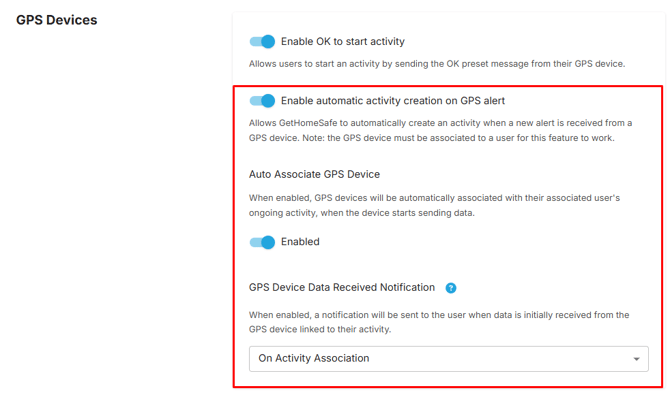
Navigate to Organisation > General Settings > GPS Devices, and locate and enable the following two settings:
- Automatic activity creation on GPS alert: This ensures that if a worker presses the SOS button on their Twig device, an incident is immediately logged and escalated in GetHomeSafe, even if the user hadn't officially started a shift.
- GPS Device Data Received Notification: This confirms that the GetHomeSafe server is successfully receiving the automated heartbeats from your device.
Part 4: GetHomeSafe integration setup
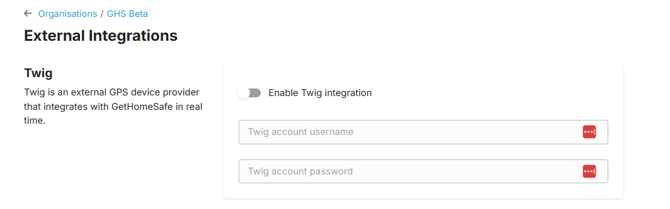
After the Twig setup you will need to enable Twig as an integration on the GetHomeSafe platform.
- Access your Enterprise as an Account Administrator.
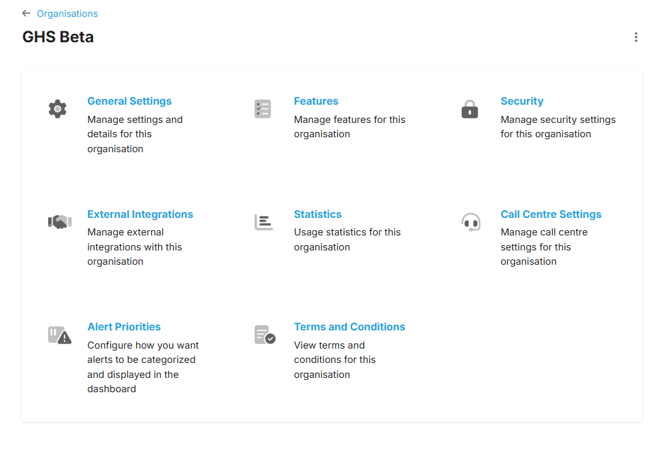
- Navigate to Manage > Organisations > (Select which organisation you wish to enable the integration for) > External Integrations.
- Enable Twig as an integration: when prompted, enter your Twig Account Username and Password. If you do not have these credentials or are unsure of your login details, contact Twig support or log in to the Twig portal to retrieve them before proceeding.