-1.jpg?width=400&height=46&name=GHS_Primary_Logo_Landscape_Full_Colour%20(1)-1.jpg)
You can now manage and configure Custom Fields at the Enterprise level. Currently, Custom Fields apply exclusively to the User model, allowing you to add free-text fields to expand the profile schema for users in your Enterprise.
Configured fields will automatically appear in your reporting exports.
Additionally, these fields can be seamlessly assigned to users during the invitation process (both individual and bulk) and support custom field mapping with Microsoft Entra AD groups.
Note: Enterprises may configure up to 3 Custom Fields. When a field is added, it applies to all users within the specified organisation; you cannot restrict these fields to specific groups or sub-teams at this time.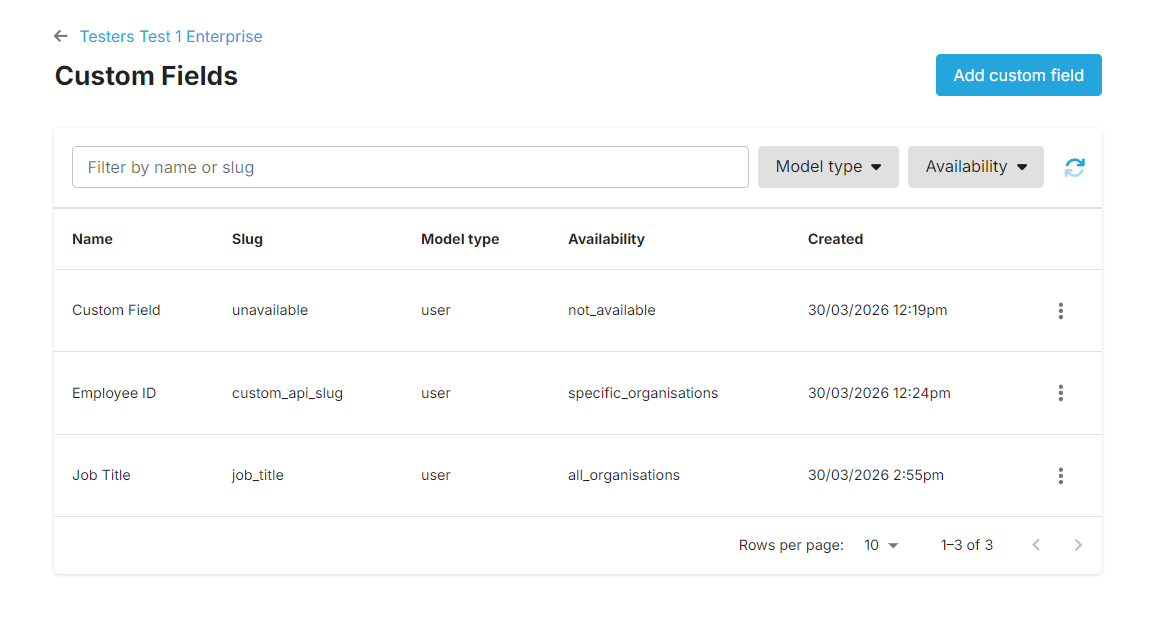
How to Configure Custom Fields
To begin managing these fields, navigate to your Enterprise Dashboard and follow these steps:
- Access the Configure > Account page from the menu sidebar.
- Select the Custom Fields section.
- Select Add Custom Field.
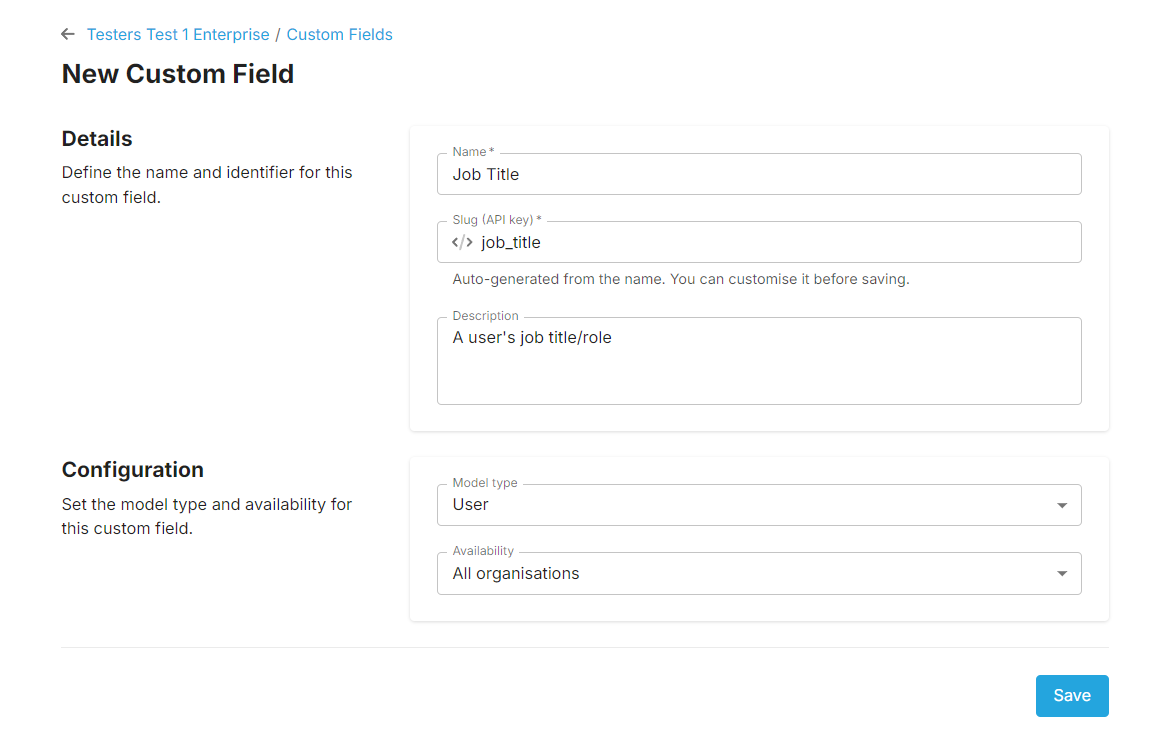
- Provide the details: Name, Slug (API Key), and Description (optional).
- Select the Model Type you would like the custom field to apply to.
Available Model Types:- User
- Select the organisation availability of the custom field.
- Save your changes to create the Custom Field.
Important: Once created, these fields will immediately become available in the profile settings of every user within the specified organisations. While a Custom Field’s details and availability may be edited after its creation, the Slug (API Key) and the Model Type cannot be changed.