-1.jpg?width=400&height=46&name=GHS_Primary_Logo_Landscape_Full_Colour%20(1)-1.jpg)
Experimental Feature: Due to strict Android operating system limitations regarding background actions, this feature is currently considered experimental. For the volume key sequence to successfully trigger a panic alert, the following conditions must be met:
- An Activity Must Be Running: You must have an active session currently running in the GetHomeSafe app.
- The Phone Must Be Unlocked: Your phone screen must be awake and the device must be unlocked for the operating system to register the volume key presses.
Note on Discreet Panic: If your organisation has 'Discreet Panic' enabled, these shortcuts will be completely silent. You will instead feel vibrations to confirm your status:
- 1 short vibration: Action sent
- 3 short vibrations: Panic successfully activated
Step 1: Enable the Feature
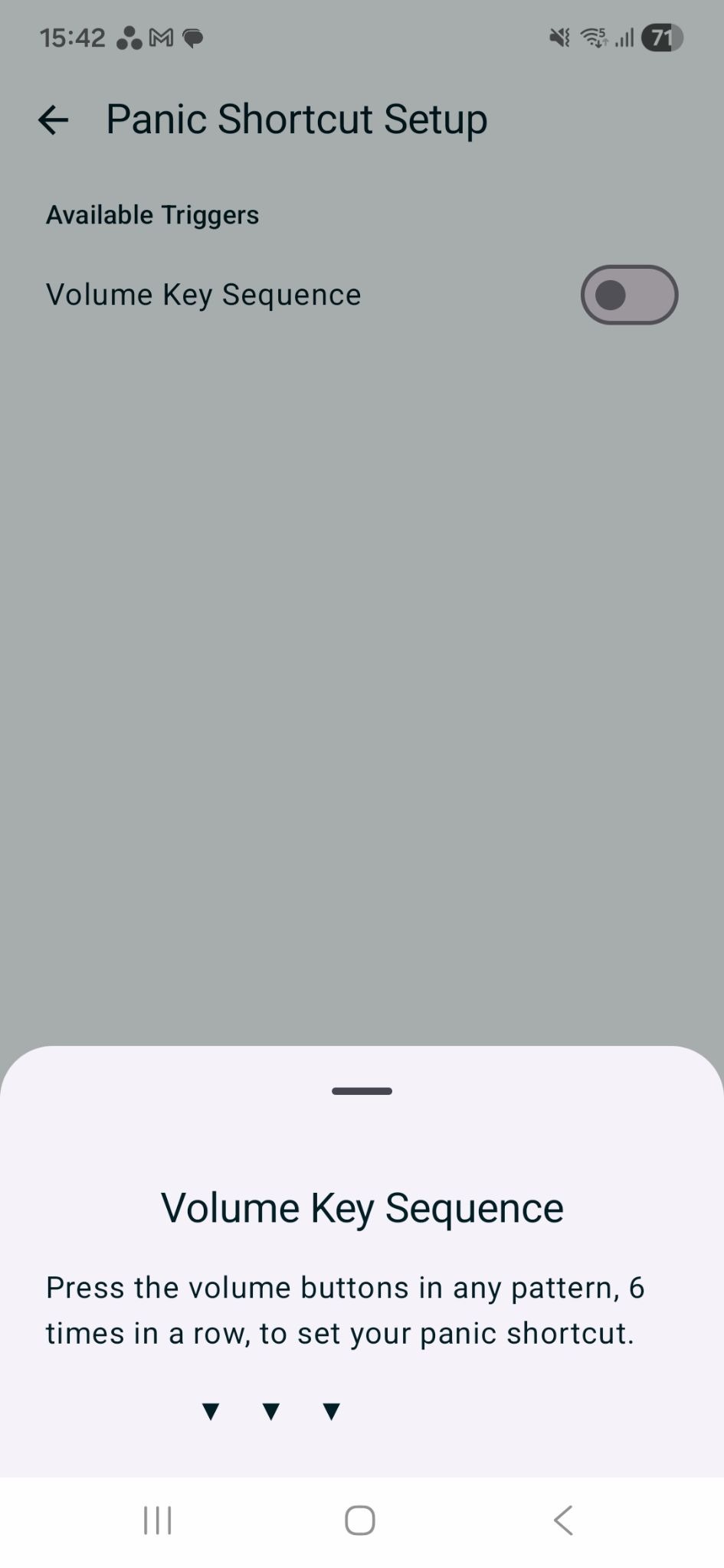
You must first turn on the hardware shortcut feature within the GetHomeSafe app.
- Open the GetHomeSafe App and navigate to Settings -> Panic Shortcut Setup.
- Tap the toggle to switch the hardware shortcut feature to ON.
Step 2: Set Your Custom Key Sequence
Once enabled, the app will immediately prompt you to create your unique trigger mechanism.
- When prompted, create a custom 6-key sequence (for example: Volume Up, Up, Down, Up, Down, Down).
- Use your phone's physical volume buttons to record your chosen combination.
- Save your sequence to confirm.
Step 3: Managing and Testing Your Shortcut
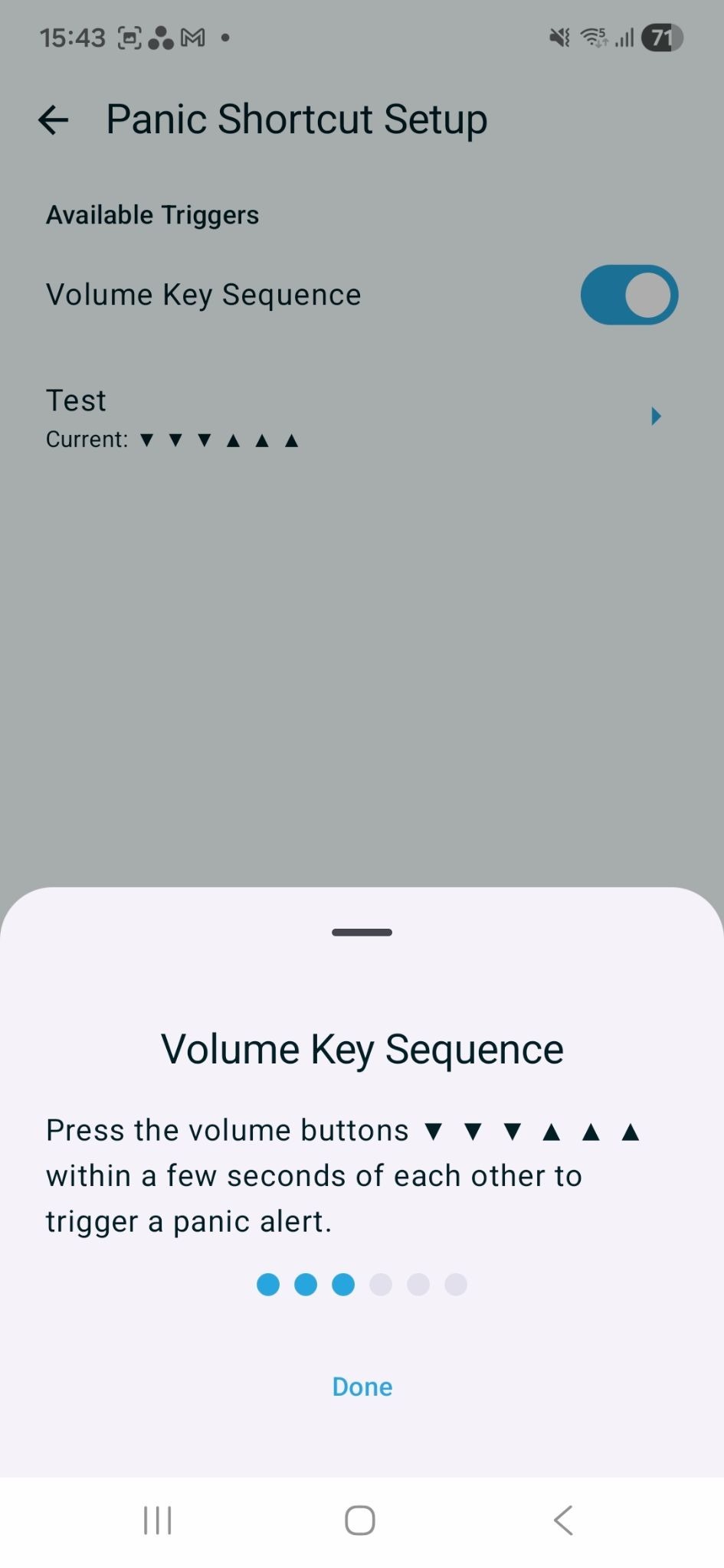
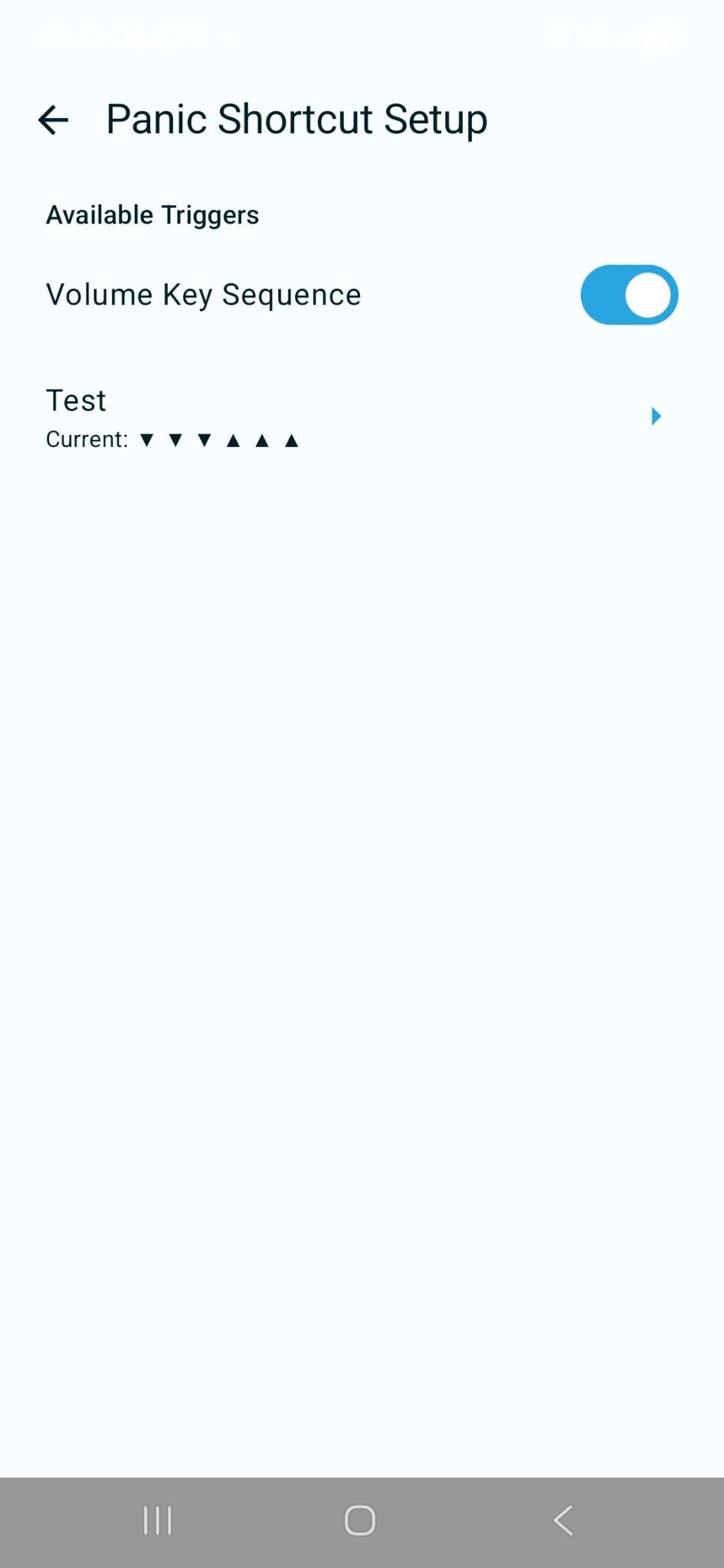
Once your sequence is set up, you will see two management options on the Panic Shortcut Setup screen:
- Change Sequence: If you find your current sequence difficult to remember or execute quickly, you can tap this option to overwrite it and record a new 6-key combination at any time.
- Test Sequence: We highly recommend practicing your sequence to build muscle memory. Tapping this option allows you to perform your volume key combination to ensure you have it right. The app will confirm a successful test on-screen without actually sending an alert to your team.